Getting Started with Omarchy: A New Linux Operating System
Omarchy is a modern, keyboard-focused Linux desktop environment built on Arch Linux. It combines a carefully selected set of tools, applications, and visual settings into a ready-to-use system, making it easier to enjoy a fast and streamlined Linux experience without configuring everything from scratch.
What You’ll Need
Before installing Omarchy, prepare:
- A compatible computer
- A USB flash drive with at least 8 GB of storage
- A backup of your important files
- A reliable internet connection
- A willingness to replace or modify your current operating system
Important: Installing Omarchy may erase data on your computer. Back up your files before proceeding.
1. Download Omarchy
Visit the official Omarchy website or project repository and download the latest installation image. Check the system requirements and installation instructions, since hardware compatibility and procedures may change over time.
2. Create a Bootable USB Drive
Use a tool such as:
- Rufus on Windows
- balenaEtcher on Windows, macOS, or Linux
- Fedora Media Writer
- The
ddcommand on Linux
Select the Omarchy image and write it to your USB drive. Be careful to choose the correct drive, because the process will erase its contents.
3. Boot from the USB Drive
Insert the USB drive into your computer and restart it. Open the boot menu—commonly by pressing F12, F10, Esc, or Delete during startup—then select the USB drive.
If the USB drive does not appear, check your computer’s BIOS or UEFI settings. You may need to change the boot order or adjust Secure Boot settings, depending on your hardware.
4. Install Omarchy
Follow the installation prompts. You may be asked to configure:
- Your keyboard layout
- Your time zone
- Your username and password
- Your network connection
- Your disk and partition setup
If Omarchy will be your only operating system, select the option to use the entire disk. To keep another operating system, choose a manual or dual-boot setup only if you understand partitioning and bootloader configuration.
5. Complete the First Boot
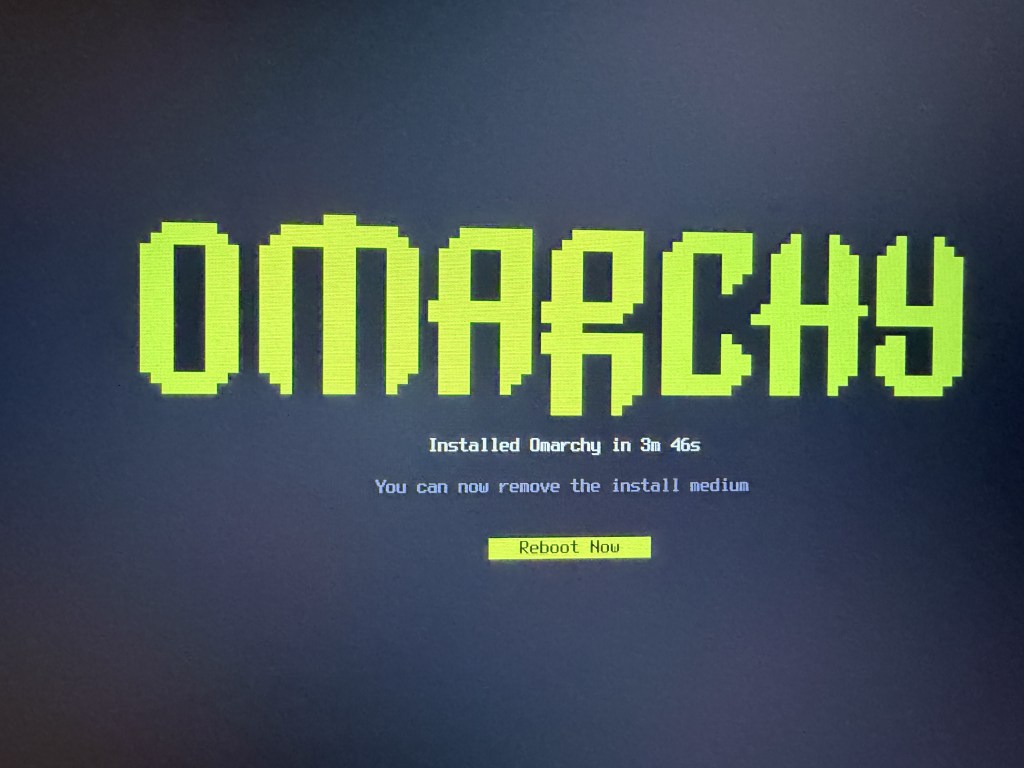
After installation, restart your computer and remove the USB drive. Once Omarchy starts, connect to the internet and allow any available updates to install.
Open a terminal and update the system using the commands recommended by the official Omarchy documentation. Since commands and maintenance practices can change, always prefer the current official instructions.
6. Learn the Keyboard Shortcuts
Omarchy is designed around keyboard-driven workflows. Spend some time learning how to:
- Open the application launcher
- Start a terminal
- Move windows between workspaces
- Change layouts
- Lock the screen
- Adjust volume and brightness
- Take screenshots
- Close or restart applications
The shortcut reference included with Omarchy is one of the best resources for learning the system quickly.
7. Customize Your Workspace
After becoming comfortable with the default setup, you can personalize:
- Wallpapers
- Themes and colors
- Fonts
- Status-bar information
- Keyboard shortcuts
- Terminal settings
- Default applications
Make changes gradually so you can easily identify which customization affects your system.
8. Install Additional Software
Use Omarchy’s recommended software-management tools to install applications. Common categories include:
- Web browsers
- Code editors
- Office applications
- Media players
- Graphic-design tools
- Communication apps
- Development utilities
Avoid installing large numbers of packages immediately. Start with the applications you use most and keep your system organized.
9. Keep the System Updated
Arch-based systems receive frequent updates. Regularly update Omarchy using its official update process, and read important notices before applying major upgrades.
Before significant system changes:
- Back up important files.
- Save your configuration files.
- Review update notes.
- Avoid interrupting the update process.
10. Get Help
If you encounter problems, consult:
- The official Omarchy documentation
- The project’s issue tracker
- Community forums or chat rooms
- Arch Linux documentation
- Your computer manufacturer’s hardware documentation
When asking for help, include your hardware details, the steps you took, and the exact error message.
Final Thoughts
Omarchy is a good choice if you want a fast, minimal, and visually consistent Linux setup without assembling every component yourself. Start by learning the basic shortcuts, keep backups of your files, and make changes slowly as you become familiar with the system.

